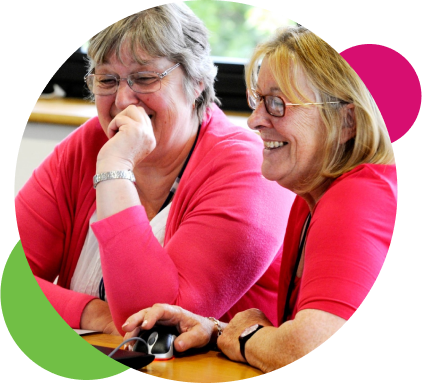
We provide training to grow digital inclusion awareness, help others with digital skills and tackle the digital divide.
We offer ongoing practical support, programme management and strategic consultancy, based on 30 years tackling digital exclusion.
We are a social enterprise and we work across the public, private and voluntary sectors.
Our training works in all areas at all levels, whether you want to create Champions who can help others with digital skills, or raise awareness of the issue across your organisation.
Establishing a strong partnership with a trusted delivery partner like Digital Unite, who is willing to go that extra mile to meet our high quality standards and the needs of our highly valued volunteers, has been a key factor in creating our successful Digital Champion programme.
Steph Noyce
Head of Money and Digital, Clarion Futures
Who do we work with?
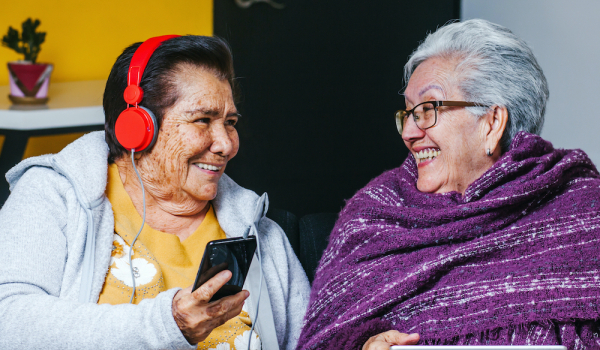
Our clients range from hyper-local charities to global tech consultants, and include local authorities, insurers, housing associations, telecoms, education and health care providers. Our products can scale and adapt to work cross all kinds of organisations of all sizes.
How do they do it?
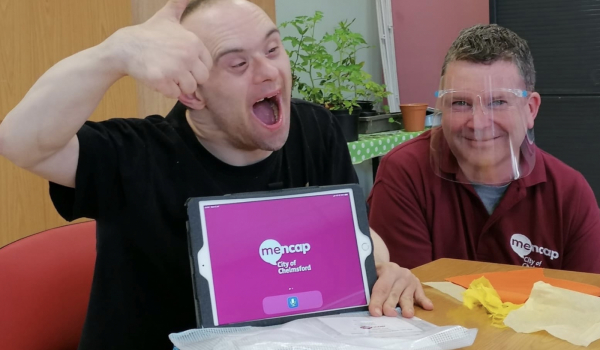
We know every organisation has the capacity to combat digital inclusion. And they can do it in a huge variety of ways. We've pulled together stories and insights from across our network about how our clients are successfully tackling the digital divide, from big ideas to practical tips.

Some of our current clients